A New Look For Campaigns
Smarter Reminders, Fewer No Shows
Every missed appointment costs twice. There's the time your team set aside, and the customer who could have taken that slot. Most no-shows aren't people who changed their minds. They simply forgot, or something came up and rescheduling felt like a hassle.
A few well-timed messages fix most of that. With TextIt Campaigns, those messages go out automatically for every contact, timed to their own appointment. And TextIt campaigns just got a fresh new look!
What is a campaign?
A campaign is a series of messages or flows tied to dates on each contact. Rather than scheduling a blast for everyone at once, you set rules like "2 days before their appointment" or "the morning of," and TextIt handles the timing for each person.
Contacts join and leave automatically. Each campaign runs on one contact group. Add someone to the group and their events are scheduled. Remove them and the events stop.
Events follow the date. If a contact reschedules and you update their date, every event moves with it.
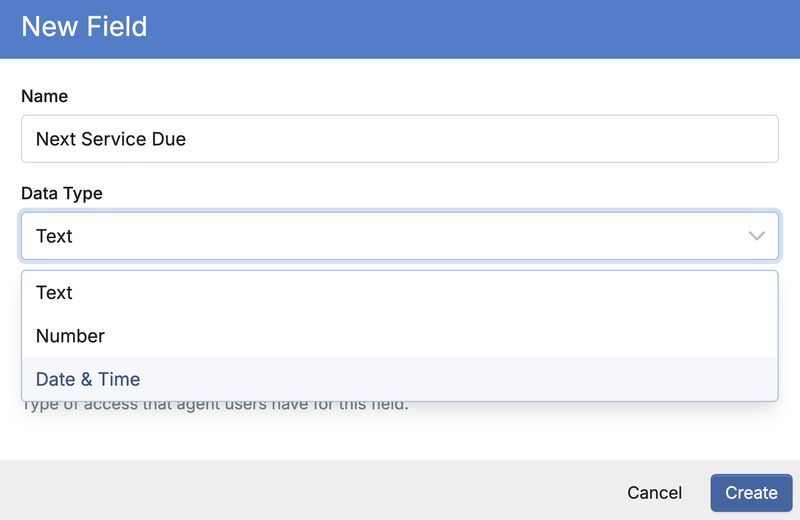
One thing to know: campaign events only work with fields set to the date & time type.
For step-by-step building instructions, see our help docs.
What's new in Campaigns
We've redesigned campaigns to make them easier to build, read and manage:
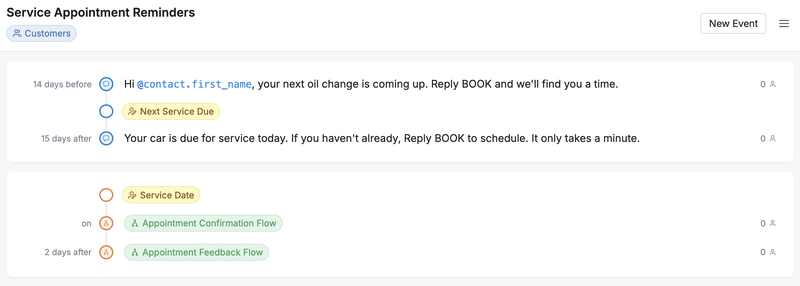
Clearer timelines. Every event is laid out in order, so you can see the whole sequence at a glance.
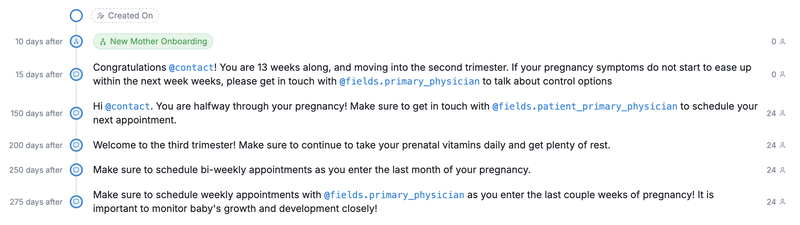
Faster editing. Updating an event's timing, message or flow is now much quicker.
Live contact counts. Each event shows how many contacts are scheduled to receive it, so you know your campaign is reaching the right people.
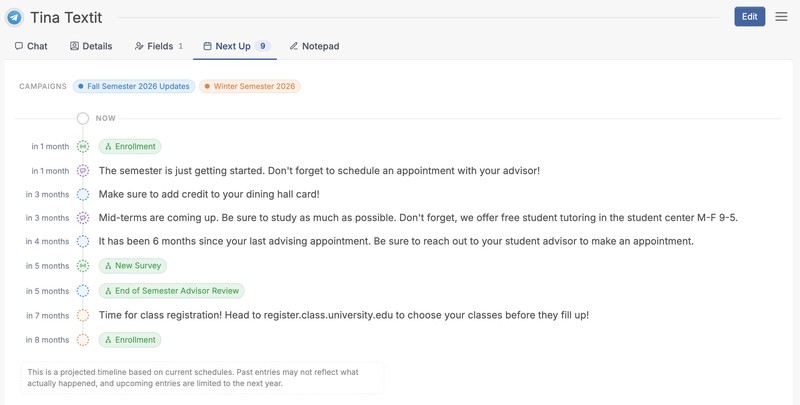
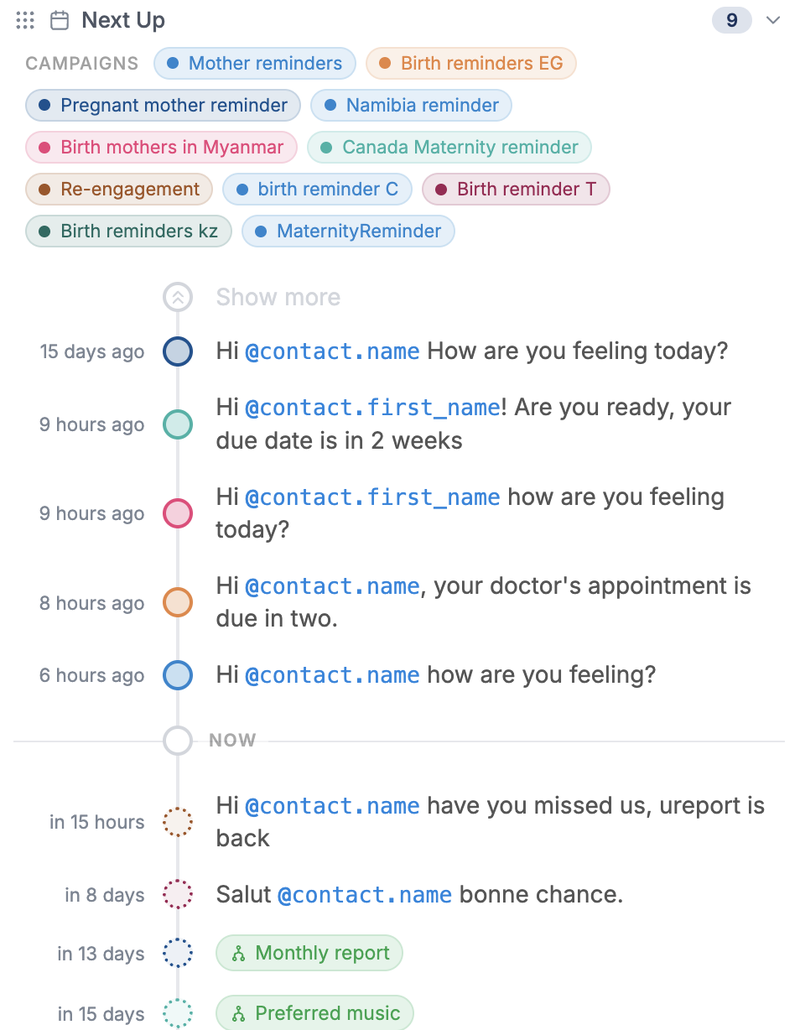
"Next up" on contact pages. Open any contact to see a timeline of the campaign events coming their way.
Let's build one: an auto repair shop
Imagine a neighborhood auto shop. Customers book oil changes, tire rotations and repairs, and the shop has two goals:
-
Get people to show up for the appointment they booked.
-
Bring them back when their next service is due.
Each customer has two date fields: Service Date and Next Service Due. One campaign handles both.
Step 1: Set up your fields and group
-
Create two date & time fields: Service Date and Next Service Due.
-
Create a group called Service Customers.
-
Fill in the dates when a customer books, by hand, by importing a spreadsheet, or automatically from your booking tool through the API or Zapier.
Step 2: Create the campaign
Create a new campaign on the Service Customers group. Each event you add can use either date field, which is how one campaign covers both goals.
Step 3: Add your events
Based on Service Date:
-
2 days before, at 10am: starts a confirmation flow. "Hi @contact.first_name, your service at Midtown Auto is on @fields.service_date. Reply 1 to confirm or 2 to reschedule." The flow saves the answer and alerts your team if someone needs a new time.
-
Morning of, at 8am: sends a message. "See you today! We're at 42 Main St. Reply here if you're running late."
-
1 day after, at 11am: starts a feedback flow. "Thanks for coming in, @contact.first_name! How did we do? Reply with a number from 1 to 5."
Based on Next Service Due:
-
2 weeks before, at 10am: "Hi @contact.first_name, your next oil change is coming up. Reply BOOK and we'll find you a time."
-
On the day, at 10am: "Your car is due for service today. Reply BOOK to schedule. It only takes a minute."
Notice that two events start flows instead of sending a single message. A flow can ask a question, react to the answer and save the result, so your campaign doesn't just remind people, it responds to them.
Step 4: Let it run
Every customer in the group now gets events timed to their own dates. With the new design, you can open the campaign to see how many customers are scheduled for each event, or open a customer's page to see exactly what's next for them. When someone books a new visit, update their Service Date and the sequence starts again.
Taking it further
-
Reach people where they are. Send on WhatsApp for customers who prefer it and SMS for everyone else.
-
Speak their language. Translate each message once and TextIt sends the right version to each contact.
-
Bring in a person when needed. When someone replies 2 to reschedule, open a ticket so your front desk can follow up.
Try it yourself
Start your free trial today and build your own similar campaign in less than 15 minutes!
See how one of our customers uses campaigns & flows to send appointment confirmations & reminders for her insurance company.